Can you use notes in a one-way (pre-recorded) video interview? How to prepare answers you can glance at
Published October 29, 2026 · 6 min read
In most one-way (pre-recorded) video interviews, brief notes are accepted, but a script read word for word shows on camera and the employer’s or platform’s instructions come first. The safest setup is a few keywords per question, placed right under the camera, and enough rehearsal that you only glance at them.
A one-way interview differs from a live call: nobody reacts to you, you often get a timer for thinking and another for answering, and you may have few or no retakes. That changes how you prepare, so this guide covers what to check first, what to write for each question, and how to practise the timing.
Are notes allowed in a one-way interview?
Career sites generally say that a few cue words are fine and that reading a full script is risky, because it sounds stiff and your eyes visibly move. But the rules differ between employers and platforms, so treat general advice as a default only.
- Read the invitation and the instructions page before you start. If they say no notes or no outside help, follow that.
- If it does not say, you can ask the recruiter. It is a normal question.
- Do not use anything that the rules forbid, and do not rely on a tool to hide it. Being honest costs you less than being caught.
What is different from a live interview
- No one nods or reacts, so it is easy to rush or to over-explain.
- Questions often appear on screen with a short preparation time and a fixed answer time. How long, and whether you can retry, depends on the platform and the employer, so read it before you begin.
- Your answer is recorded and may be watched later by several people, so a clean start and a clear ending matter.
Our guide to notes in a live video interview covers glancing and placement in more detail; this one focuses on what is specific to recorded answers.
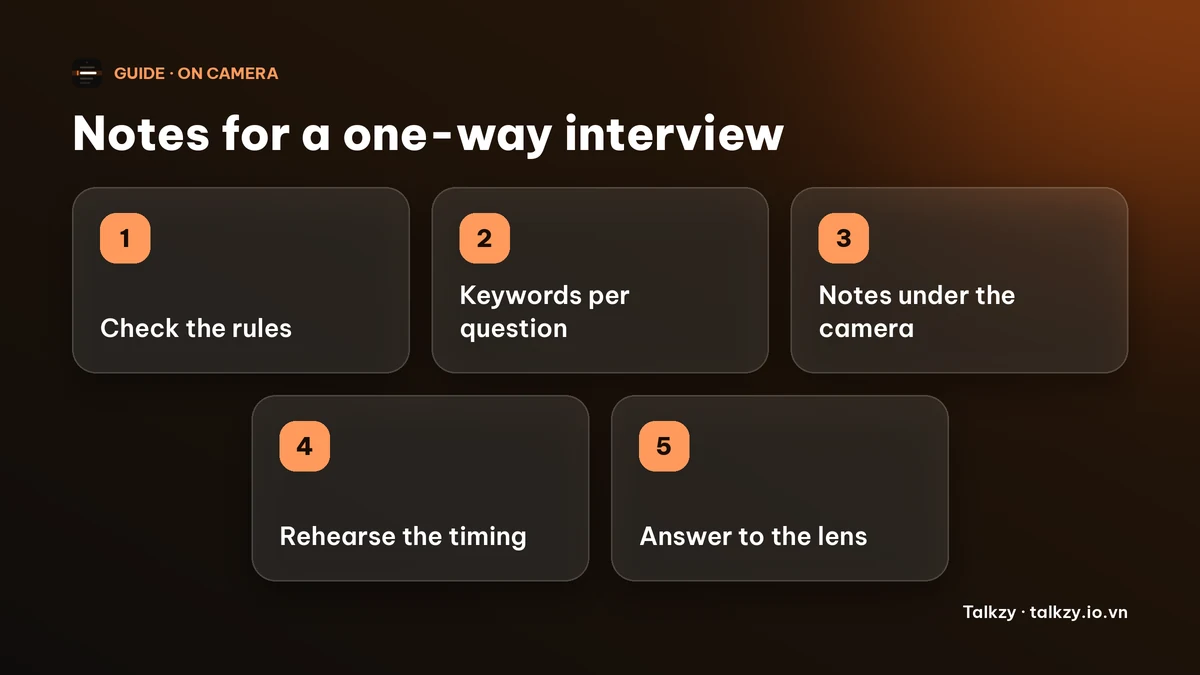
Step 1: write a card for each likely question
You cannot know the exact questions, but common ones come up: tell me about yourself, why this role, a strength, a challenge you handled, a time you worked in a team. Prepare a card for each.
- The opening line, which you can know almost word for word.
- Two or three keywords for the points you want to make.
- One real example, as keywords: situation, what you did, result, with the number if you have one.
- The closing line, so you finish rather than trail off.
Step 2: fit each answer to the time limit
Say each answer out loud with a timer. Speaking pace is usually somewhere around 130 to 150 words a minute, so a 60-second answer is only about 130 to 150 words, and your notes should be far shorter than that. If you run over, cut a point rather than speak faster.
Leave a few seconds spare, because a thought that is cut off by the timer is worse than one that finished early.
Step 3: put the notes right under the camera
The closer the notes are to the lens, the smaller your eye movement. On a laptop, put them at the top centre of the screen, a few lines tall and in large type. Raise the laptop so the camera is at eye level.
- Glance during the preparation time and at natural pauses, not in the middle of a sentence.
- Look at the lens for your opening and your closing line.
- If you lose your place, pause for a breath. A short silence is hardly noticeable.
Step 4: record a practice run
Record yourself answering three questions on the same device and in the same room, then watch it with the sound off. Can you tell where your eyes are going? Do you start and end cleanly? Adjust the notes, not your whole answer.
Check the camera, the microphone, the light and the internet connection before you start, as a failed upload is the one problem you cannot fix by practice.
Setting it up with Talkzy for Mac
You do not need an app for this; paper under the camera works. If you prefer your notes on screen, Talkzy for Mac is a slim script bar that hangs from the MacBook’s notch, or sits top-centre on a display without one, and stays on top of other windows. It is on the Mac App Store for macOS 14 or later.
- Put one card per question in a script and start each with a # line, so every question is its own section you can jump between.
- In Settings, Overlay you can set the text size from 14 to 36 pt, the width from 360 to 900 pt and the number of visible lines, from 2 to 6.
- Timed mode scrolls at a fixed speed you set, from 60 to 260 words a minute, and it is free. Voice-follow is labelled beta and is free for 3 sessions a day. For short keyword cards you can also just read them without scrolling.
- A global shortcut, ⌃⌥⌘H by default, hides the bar at any time. Talkzy also has a built-in check of what others would see if you shared your screen, which needs Screen Recording permission and which you run yourself. Meeting apps capture screens in different ways, so treat the result as a hint, not a promise.
The iPhone and iPad app is coming soon to the App Store.
Frequently asked questions
- Can I read from a script in a one-way video interview?
- Check the rules first. Where notes are allowed, a few keywords are usually fine, but a full script read word for word looks and sounds stiff. Write keywords and an opening and closing line rather than whole answers.
- Will the recruiter know I used notes?
- They may notice if your eyes move a lot or your rhythm sounds written. Short keyword notes right under the camera and plenty of practice make it much less visible. If the rules say no notes, do not use them.
- How long should my answer be?
- Use the time limit shown for each question and aim to finish a little before it ends. At a normal pace of about 130 to 150 words a minute, a one-minute answer is only around 130 to 150 words.
- Does Talkzy work in a one-way interview platform?
- Talkzy for Mac is a bar that stays on top of other windows, so it can sit under the camera while a browser is open. Platforms differ in what they allow, and its screen-sharing check is a hint, not a promise, so read the platform’s rules first.